
AI does the editing; you do the thinking. Creating video content consistently is one of the biggest challenges for lawyers and working professionals today.
Table of Contents
Between managing client work, meetings, and deadlines, finding time to record, edit, and publish videos feels nearly impossible.
But what if you could produce professional-quality video content without editing software expertise, without hiring a video team, and without spending your billable hours on post-production?
This is exactly what AI-powered tools like Descript make possible. This guide walks you through a simple, repeatable five-step workflow to create polished videos for a YouTube channel, podcast, or personal brand using AI to handle the heavy lifting.

Why Video Content Is Hard – And Why Most Professionals Give Up
Most professionals run into two specific problems when they try to build a content habit:
- Time-consuming editing: Traditional video editing requires listening to your entire recording multiple times once to review, once to trim, once to sync captions while manually scrubbing a timeline.
- Caption synchronisation: A large proportion of viewers watch videos with the sound off, especially on LinkedIn and social platforms. Manually writing and syncing captions can add hours to your workflow.
These two barriers alone stop most professionals from ever starting. The good news: AI can solve both.
What is Descript and How Does It Help?
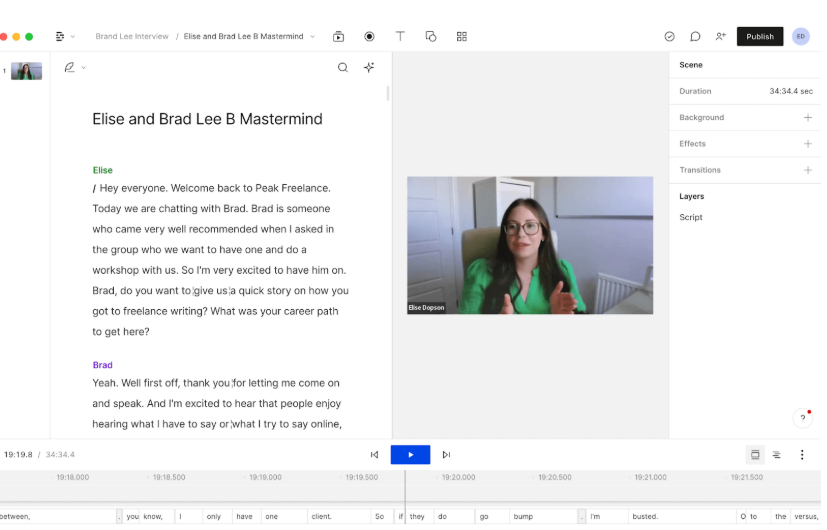
Descript is an AI-powered video and audio editing tool that works differently from traditional software. Instead of editing a timeline frame by frame, you edit a transcript just like editing a Word document.
Here is what makes it particularly useful for lawyers and professionals:
- Automatic transcription: Upload your video and Descript instantly transcribes everything you said. Edit the text, and the video edits itself.
- Filler word removal: Automatically detects and removes “uh”, “umm”, and “like” in a single click with no manual scrubbing required.
- AI voice cloning: Descript can record audio IN YOUR OWN VOICE meaning you can generate podcast episodes or narration without recording yourself each time.
- Automated captions: Captions are generated and synced automatically, saving hours of manual work.
The result? A video editing workflow simple enough that an intern can operate without hiring or managing an expensive production team.
Step-by-Step: How to Edit and Publish Videos Using Descript
Follow this five-step process to go from raw footage to a publish-ready video, consistently.
Step 1 Review Your Raw Footage
Upload your raw footage to Descript. The tool immediately transcribes the entire recording, giving you a readable text version of everything you said.
- Scan your content like reading a document no need to watch the entire video first.
- Quickly identify which parts are strong, which need trimming, and where to begin.
- Think of it like a writer reading rough notes before drafting it gives you a clear content map before you start shaping.
Step 2 Create a Rough Cut
Open your Descript project and drag your video footage into the workspace. Your only goal here is to organise the content into a loose structure not to perfect it.
- Arrange your best clips to form the basic outline of your video.
- Add B-roll footage, supporting visuals, or placeholder captions as needed.
- Treat this like writing a rough draft. The goal is structure, not perfection.
Step 3 Fine-Tune Your Edit
With a rough cut in place, now you refine. This is where Descript’s AI features save the most time.
- Pacing: Remove slow or repetitive sections by simply deleting lines from the transcript.
- Filler word removal: Strip out “ums”, “likes”, and unnecessary pauses automatically with one click.
- Captions: Add branded captions easily, Descript automates the sync, so even a first-time editor can handle this step.
- Visuals: Adjust what appears on screen and when, using Descript’s visual controls. No timeline-dragging needed.
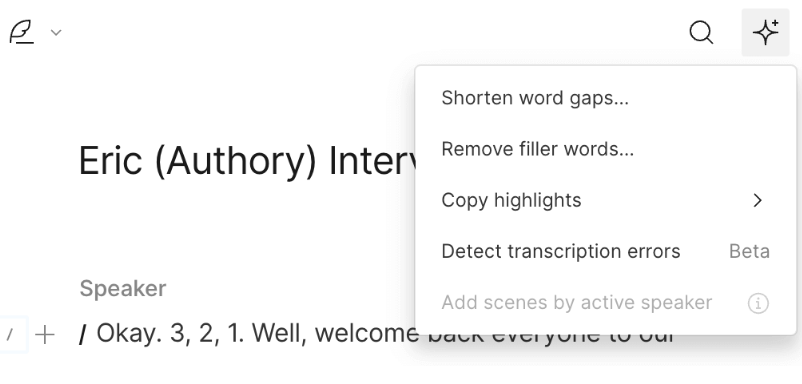
Audio clarity and colour adjustments can also be handled at this stage to ensure your final video sounds and looks professional.
Step 4 Polish Your Final Edit
Rewatch your video from start to finish and make the final refinements. This pass is about elevation, taking a good video and making it great.
- Trim any remaining slow or unpolished sections that disrupt the flow.
- Add any missing shots or supporting visuals that strengthen your message.
- Adjust transitions between clips to keep the viewing experience smooth.
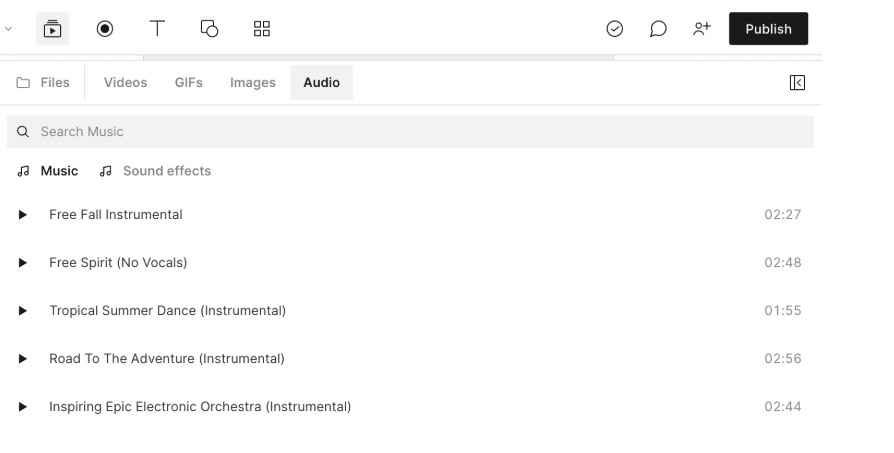
- Add background music or ambient audio to give the video a professional feel.
These small finishing touches separate amateur-looking content from polished, professional videos that build credibility.
Step 5 Get Feedback and Finalise
Before publishing, step away from the project for at least a day. Returning with fresh eyes helps you catch mistakes, pacing issues, and confusing sections.
- Share the video with a colleague or peer and ask for honest feedback.
- Even experienced content creators rely on external feedback to catch blind spots developed during editing.
- Incorporate final tweaks, do a last review, and your video is ready to publish.
What You Can Use This Workflow For
Once the process is set up, here is how professionals are putting it to use:
- Launch an audio or video podcast where you share insights or where guests share their experiences. Descript makes video editing so easy that you can ask an intern to do it without having to hire and manage an expensive video editing operation.
- Create videos from your notes and Word files, in your own voice without having to record yourself. This means your written content can become video content at scale, with minimal effort.
Conclusion
Video content doesn’t have to be complicated or time-consuming. With a tool like Descript and a simple five-step process, any lawyer or professional can build a consistent content presence without a production team, without expensive software, and without sacrificing billable hours. The workflow exists. The technology is ready. All that’s left is to start. The tools are available, the process is proven, and the only thing standing between you and a consistent video presence is the decision to begin.





 Allow notifications