
Is UGC NET Exam conducted offline or online? Complete guide to CBT mode covering exam interface, navigation tips, preparation strategies, and exam day procedures.
Table of Contents
Introduction
If you are preparing for the UGC NET exam, one of the first questions on your mind is likely whether the exam is conducted online or offline. The answer is clear: UGC NET is conducted in Computer Based Test (CBT) mode by the National Testing Agency (NTA). This has been the standard format since December 2018, with the exception of a one-time offline examination in June 2024.
Understanding how CBT mode works is essential for your exam preparation. Unlike traditional pen-and-paper exams where you fill OMR sheets, the CBT format requires you to answer questions on a computer screen at designated test centres. This guide will walk you through everything you need to know about the UGC NET CBT mode, from interface navigation to exam day procedures.
Whether you are a first-time candidate unfamiliar with computer-based testing or someone who wants to master the CBT interface for better performance, this comprehensive guide covers all aspects of the UGC NET exam mode. By the end, you will feel confident about navigating the digital examination format and using its features to your advantage.

Current UGC NET Exam Mode: CBT (Computer Based Test)
Official NTA Confirmation on CBT Mode
The National Testing Agency has officially confirmed that UGC NET 2025 will be conducted in Computer Based Test (CBT) mode only. According to the NTA Information Bulletin, the examination shall be conducted in CBT mode at designated test centres across more than 250 centers in India. This applies to both the June 2025 and December 2025 sessions, with candidates answering all 150 questions on individual computer terminals.
When Did UGC NET Switch from OMR to CBT?
The transition from OMR (Optical Mark Recognition) to CBT mode happened in December 2018 when NTA took over the conduct of UGC NET from the Central Board of Secondary Education (CBSE). Prior to this, candidates would fill bubble sheets with pencils, which were then scanned for evaluation. The shift to CBT mode was part of NTA’s mandate to modernise national-level examinations and ensure greater transparency, security, and efficiency in the examination process.
Meaning of CBT
Computer Based Test (CBT) refers to an examination format where candidates answer questions displayed on a computer screen rather than on printed question papers. In the UGC NET CBT mode, you sit at an individual computer terminal at a designated test centre, read questions on the monitor, and select your answers by clicking on the appropriate options using a mouse. The entire examination process, from viewing questions to submitting answers, happens digitally.
Core Features of CBT Mode
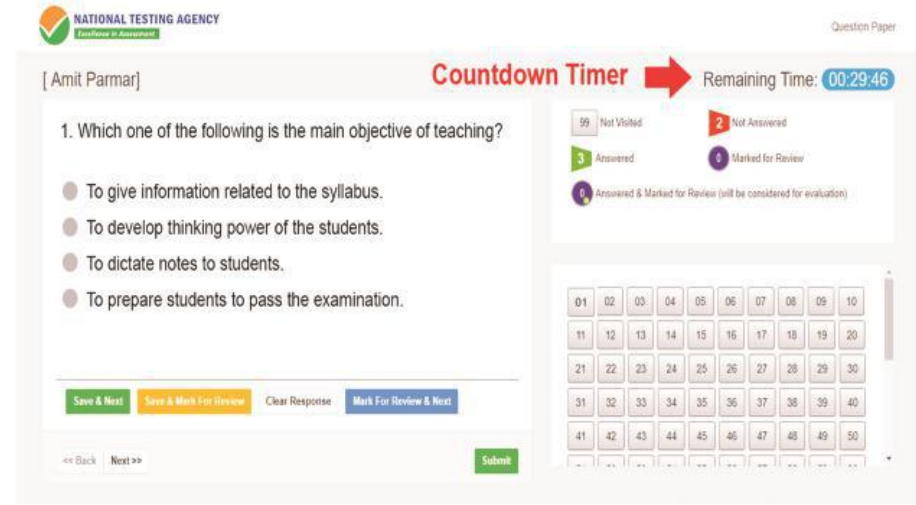
The UGC NET CBT interface comes with several features designed to help candidates navigate the examination smoothly. You get a question palette that shows the status of all questions at a glance, colour-coded indicators to track answered and unanswered questions, and navigation buttons to move between questions. The interface also includes a countdown timer that displays remaining time throughout the examination.
One of the most valuable features is the ability to mark questions for review. If you are unsure about an answer, you can flag it and return to it later before final submission. Unlike OMR-based exams where changing an answer requires erasing and re-marking, CBT mode allows you to modify your responses unlimited times until you click the final submit button.
How NTA Implements CBT for UGC NET Exam
NTA conducts the UGC NET CBT examination at test centres equipped with computers, CCTV surveillance, and jammers to ensure examination integrity. Each candidate is assigned a unique login credential and a specific computer terminal. The examination software is loaded on local servers at each centre, and candidates access it through a standardised interface that remains consistent across all test locations.
The examination is conducted in two shifts daily: the first shift runs from 9:00 AM to 12:00 PM, and the second shift runs from 3:00 PM to 6:00 PM. Both Paper 1 (General Aptitude) and Paper 2 (Subject-Specific) are conducted in a single three-hour session without any break. This integrated format means you need to manage your time effectively between both papers within the CBT interface.
Why Does the NTA Conduct the UGC NET Exam in CBT Mode?
No OMR Sheet Filling Errors
In traditional OMR-based examinations, candidates often lose marks due to incorrect bubble filling, smudging, or using the wrong type of pencil. The CBT format eliminates these risks entirely. Your answer is recorded exactly as you click it, with no possibility of misinterpretation by scanning machines. This ensures that your performance is evaluated accurately based on your actual responses, not affected by errors in marking technique.
Flexibility to Review and Change Answers
The CBT interface allows you to change your answers as many times as you want before final submission. If you realise you made a mistake or want to reconsider an answer after attempting other questions, you can simply navigate back and modify your response. The “Mark for Review” feature lets you flag doubtful questions and revisit them later. This flexibility is not available in OMR-based exams where changing answers can be messy and sometimes impossible.
Faster Result Declaration
One of the biggest advantages of CBT mode is the speed of result declaration. Since answers are recorded digitally, NTA can process responses much faster than scanning lakhs of OMR sheets. The automated evaluation system eliminates manual intervention, reducing the time between examination and result announcement. For UGC NET, results are typically declared within 45-60 days of the examination, compared to the longer processing times required for paper-based tests.
Multiple Question Paper Sets
To prevent malpractice, NTA uses multiple question paper sets in CBT mode. While all candidates get the same questions, the order of questions and options is randomised for each candidate. This means even if two candidates sit next to each other, their screens will display questions in different sequences. This randomisation makes it virtually impossible to copy from neighbouring candidates.
Randomised Question Sequence
Beyond multiple question sets, the CBT software randomises the sequence of both questions and answer options for each candidate. A question that appears as Question 1 on your screen might appear as Question 47 on another candidate’s screen. Similarly, what is Option A for you might be Option C for someone else. This sophisticated randomisation, combined with CCTV surveillance and electronic jammers at test centres, creates a highly secure examination environment.
Layout of the UGC NET Exam CBT Screen
Question Display Area
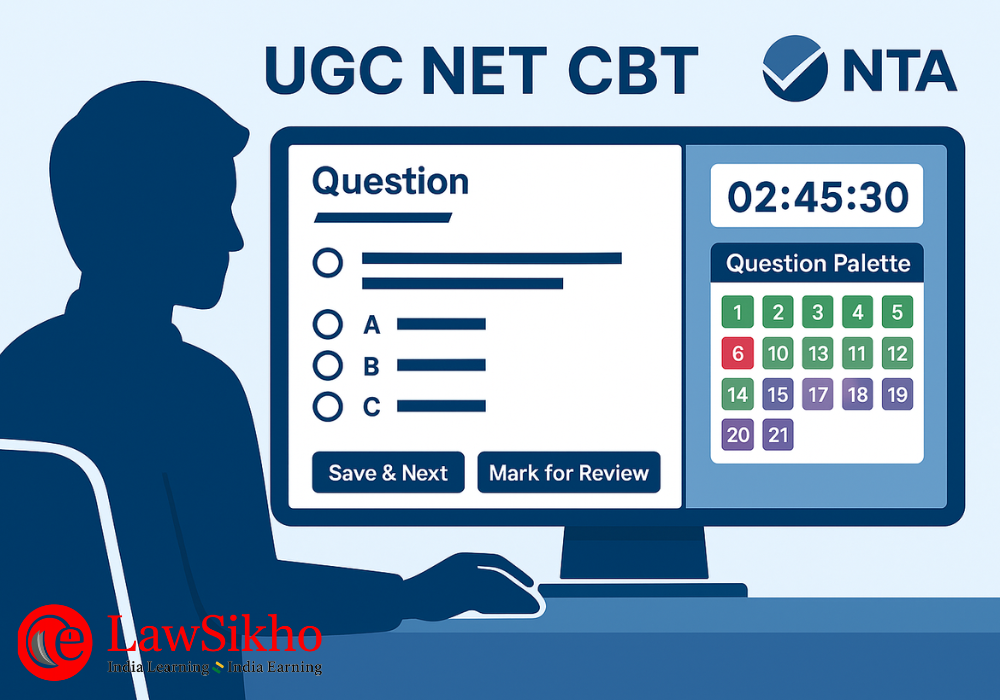
The main portion of your CBT screen displays the current question along with its four answer options (A, B, C, D). The question text appears in the centre-left area, and you can scroll down if the question or options are lengthy. Each option has a radio button that you click to select your answer. The interface supports both English and Hindi, depending on the medium you selected during application.
Question Palette with Colour Codes
On the right side of your screen, you will see the Question Palette, which displays numbered boxes representing all 150 questions (50 for Paper 1 and 100 for Paper 2). Each box is colour-coded to show the status of that question: whether you have answered it, not answered it, or marked it for review. You can click on any question number in the palette to jump directly to that question, making navigation efficient and convenient.
Timer and Submission Button
At the top-right corner of the screen, a countdown timer displays the remaining time in hours, minutes, and seconds. This timer runs continuously throughout the three-hour examination. Below the question palette, you will find the Submit button, which you click only when you are ready to end your examination. The interface will ask for confirmation before final submission to prevent accidental clicks.
How to Navigate Between Questions in UGC NET Exam CBT Mode?
Save and Next Button
After selecting an answer for a question, click the “Save & Next” button to save your response and move to the next question. This is the most commonly used navigation button during the examination. Your answer is recorded in the system, and the question’s status in the palette changes to indicate it has been answered. Always remember to click “Save & Next” before moving on, or your selected answer may not be recorded.
Mark for Review and Next
If you want to revisit a question later, use the “Mark for Review & Next” button. This saves your current response (if any) and flags the question for review while moving you to the next question. The question number in the palette will show a special colour indicating it is marked for review. This feature is particularly useful for questions where you are unsure and want to reconsider after completing other questions.
Clear Response Option
If you want to deselect your chosen answer for a question, use the “Clear Response” button. This removes your selected option and resets the question to unanswered status. This is useful when you initially select an answer but later decide you are not confident about it and prefer to leave the question unanswered rather than risk a wrong response. Remember, there is no negative marking in UGC NET, so clearing a response is purely a strategic choice.
Moving Between Paper 1 and Paper 2
The UGC NET CBT interface shows Paper 1 and Paper 2 as separate sections, typically accessible through tabs at the top of the question palette. You can switch between papers at any time during the examination. Paper 1 contains Questions 1-50, while Paper 2 contains Questions 51-150. The flexibility to move between papers allows you to attempt questions in whichever order suits your strategy, though most candidates prefer completing Paper 1 before moving to Paper 2.
Question Palette Colour Codes in UGC NeT Exam
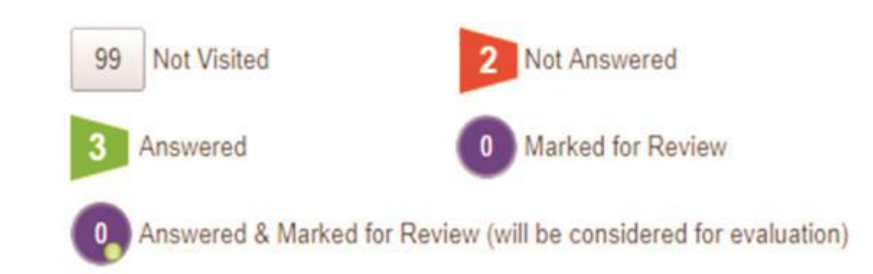
Green (Answered), Red (Not Answered), Purple (Marked for Review)
Understanding the colour codes in the question palette is crucial for tracking your progress. Green indicates questions you have answered and saved. Red or white indicates questions you have not answered or not visited yet. Purple (or a combination colour) indicates questions you have marked for review. Some interfaces also show a different colour for questions that are both answered and marked for review, meaning you have selected an answer but still want to revisit them.
How to Track Your Progress During Exam
The question palette serves as your progress dashboard throughout the examination. At any point, you can glance at the palette to see how many questions you have answered (green), how many are pending (red/white), and how many need review (purple). This visual representation helps you manage your time effectively. If you notice too many red boxes with limited time remaining, you know you need to pick up pace. The palette also shows section-wise breakdowns, helping you track Paper 1 and Paper 2 progress separately.
Advantages vis-à-vis UGC NET Exam Pattern
Handling 150 Questions in Single 3-Hour Session
The UGC NET examination requires you to answer 150 questions (50 in Paper 1 and 100 in Paper 2) within a continuous three-hour session. The CBT format is particularly well-suited for this intensive pattern because it allows efficient navigation between questions. Unlike paper-based exams where you might waste time flipping pages, the CBT interface lets you jump to any question instantly by clicking its number in the palette.
The digital format also helps you implement time-management strategies effectively. You can quickly attempt questions you are confident about, mark difficult ones for review, and return to them later. The visible timer keeps you aware of remaining time, and the progress tracker in the question palette shows exactly where you stand. This real-time feedback is invaluable when managing 150 questions across two papers in a single sitting.
Use of Mark for Review Feature
The “Mark for Review” feature is one of the most powerful tools in the CBT interface, and strategic use of this feature can significantly improve your performance. When you encounter a question that requires more thought or calculation, mark it for review and move on rather than spending excessive time on it initially. This ensures you attempt all easier questions first and maximise your score from questions you know well.
UGC NET Exam Day CBT Procedures and Guidelines
What Happens When You Reach the Examination Centre?
Reporting Time and Entry Procedures
Candidates must report to the examination centre at least two hours before the scheduled start time. For the first shift (9:00 AM to 12:00 PM), you should reach by 7:00 AM, and for the second shift (3:00 PM to 6:00 PM), by 1:00 PM. The registration desk closes 30 minutes before the examination begins, after which no candidate is allowed entry regardless of the reason for delay. Carry your printed admit card and a valid photo ID (Aadhaar, PAN, Passport, Voter ID, or Driving License) as these are mandatory for entry.
Biometric Verification and Seat Allocation
Upon entry, you will undergo biometric verification, which typically includes fingerprint scanning and photograph capture. This data is matched with the information you provided during registration to confirm your identity. After verification, you will be directed to your assigned computer terminal. Each candidate has a pre-allocated seat number mentioned on the admit card, and you must sit only at your designated terminal. Sitting at any other terminal may lead to cancellation of your candidature.
CBT Login Process and Starting the Examination
Entering Credentials and Verifying Personal Details
Once seated at your terminal, the invigilator will provide your login credentials, which typically include your roll number and a password. Enter these carefully on the login screen. After logging in, a screen displaying your personal details (name, photograph, subject, and other information) will appear. Verify that all details are correct and match your admit card. If you notice any discrepancy, immediately inform the invigilator before proceeding further.
Reading On-Screen Instructions Before Exam Begins
Before the examination begins, detailed instructions will appear on your screen. These instructions explain the examination pattern, marking scheme, navigation buttons, and rules. You will have approximately 15-20 minutes to read these instructions carefully. Use this time to familiarise yourself with the interface and understand how to use various features. The examination will not start until the scheduled time, and all candidates begin simultaneously when the timer activates.
Rules for Using Rough Sheets During CBT Exam
What Rough Work Materials Are Provided
Even though UGC NET is conducted on computers, you will need rough sheets for calculations, especially for mathematical reasoning and data interpretation questions in Paper 1. The examination centre provides rough sheets (usually two sheets initially) and a pen for this purpose. All rough work must be done only on the provided sheets. You are not allowed to bring your own stationery, paper, or any other materials into the examination hall.
Returning Rough Sheets After Examination
All rough sheets provided during the examination must be returned to the invigilator before leaving the examination hall. Writing your answers or any other information on these sheets with the intention of taking them outside is prohibited and considered unfair means. The invigilator will collect the rough sheets from all candidates after the examination ends. Ensure you have submitted all sheets before leaving your seat.
How to Prepare Specifically for UGC NET CBT Mode?
Practicing with NTA Official Mock Tests
How to Access Free Mock Tests on NTA Website
NTA provides free official mock tests for UGC NET on its website to help candidates familiarise themselves with the CBT interface. Visit ugcnet.nta.ac.in and look for the mock test link. These mock tests simulate the actual examination interface, allowing you to practice navigation, understand button functions, and experience the question palette. Mock tests are available for both Paper 1 and various Paper 2 subjects.
Practicing Under Timed Conditions
Simply accessing the mock test is not enough; you must practice under timed conditions to simulate the actual examination environment. Set aside three uninterrupted hours and attempt the mock test as if it were the real examination. This practice helps you develop time management skills, get comfortable with screen reading, and understand how quickly you need to move through questions. Attempt multiple mock tests before your examination date.
CBT-Specific Preparation Strategies
Developing Screen Reading Speed and Comprehension
Reading from a computer screen is different from reading printed text, and many candidates find it initially challenging. Your reading speed on screen may be slower than on paper, affecting the time available for answering. To overcome this, practice reading study materials, previous year questions, and general content on a computer screen regularly during your preparation phase.
Additionally, adjust your screen brightness and font size settings during practice to find what works best for you. At the actual examination, you may not have control over these settings, but practicing on various screens will help you adapt quickly. Focus on understanding content efficiently without needing to re-read passages multiple times.
Keyboard and Mouse Navigation Techniques
While the UGC NET CBT interface is primarily mouse-based, developing efficient clicking habits saves valuable time. Practice clicking precisely on radio buttons without accidentally selecting wrong options. Get comfortable with scrolling through lengthy questions and using the question palette for quick navigation. If you are not accustomed to using a mouse for extended periods, practice this during your preparation to avoid fatigue during the actual three-hour examination.
Time Management for 3-Hour CBT Exam
Allocating Time for Paper 1
Paper 1 consists of 50 questions worth 100 marks, covering Teaching Aptitude, Research Aptitude, Comprehension, Communication, Mathematical Reasoning, Logical Reasoning, Data Interpretation, ICT, Environment, and Higher Education. A recommended approach is to allocate approximately 50-60 minutes for Paper 1, giving you roughly one minute per question on average.
However, not all Paper 1 questions require equal time. Reading comprehension passages and data interpretation questions may need 2-3 minutes each, while Teaching Aptitude and Communication questions can often be answered in 30-45 seconds. Practice identifying question types quickly and allocate time accordingly. The CBT interface timer helps you track whether you are staying on schedule.
Allocating Time for Paper 2
Paper 2 contains 100 subject-specific questions worth 200 marks. With Paper 1 ideally completed in 50-60 minutes, you should have approximately 2 hours (120 minutes) for Paper 2. This gives you slightly over one minute per question. Since Paper 2 tests in-depth knowledge of your subject, some questions may require more time for recall and analysis.
Prioritise questions from topics you have prepared well and attempt them first. Mark difficult questions for review and return to them after completing the easier ones. The goal is to maximise your attempts in the available time while ensuring accuracy. Do not spend more than 2-3 minutes on any single question during your first pass; mark it and move on if it takes longer.
Using Question Palette for Strategic Attempt Sequence
The question palette is not just for tracking progress; it is a strategic tool for optimising your attempt sequence. During your first pass through the examination, quickly attempt all questions you can answer confidently and mark others for review. This ensures you do not miss easy questions that appear later in the paper due to time constraints.
After your first pass, use the palette to identify all marked questions and revisit them systematically. The colour coding helps you see exactly how many questions need attention. In the final 15-20 minutes, use the palette to check for any unattempted questions (red boxes) and make educated guesses where possible, since there is no negative marking in UGC NET.
Common Technical Issues in UGC NET CBT Exam and Solutions
Computer or System Malfunction
Immediate Steps to Take
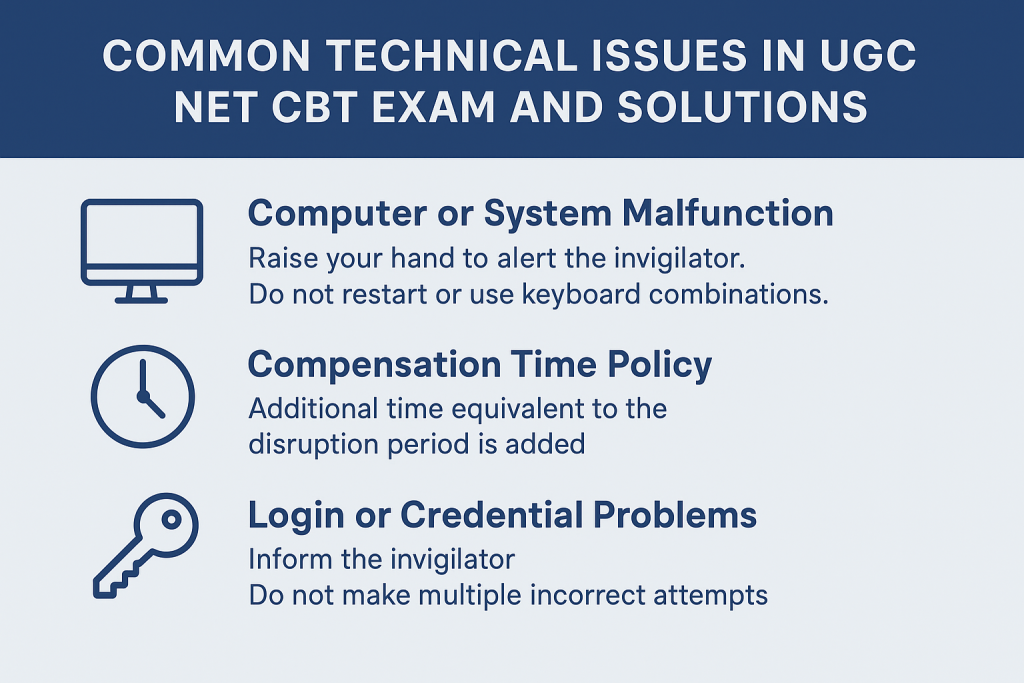
If your computer freezes, the screen goes blank, or the mouse stops responding during the examination, do not panic. Raise your hand immediately to alert the invigilator. Do not attempt to restart the computer yourself or press any keyboard combinations, as this may complicate the issue or affect your saved responses. The invigilator will contact technical support to resolve the problem.
Technical staff at each centre are trained to handle such situations. In most cases, your responses are automatically saved on the server, so even if there is a system malfunction, your already-submitted answers remain secure. The technical team will either restore your session on the same computer or shift you to a backup terminal while preserving your progress.
Compensation Time Policy
If you lose examination time due to technical issues that are not your fault, NTA’s policy provides for compensation time. The examination software logs all interruptions, and additional time equivalent to the disruption period is added to your session. This ensures that technical glitches do not disadvantage any candidate. The centre superintendent documents such incidents, and the compensation is applied automatically or manually as appropriate.
Login or Credential Problems
Contacting Exam Invigilator
If you face issues logging in, such as incorrect password errors or system not recognising your credentials, immediately inform the invigilator. Do not make multiple incorrect login attempts, as this may lock your account. The invigilator will verify your identity through your admit card and coordinate with the control room to reset your credentials or resolve the authentication issue. Such problems are usually resolved within minutes.
Power or Internet Disruption
How NTA Handles Such Situations
NTA examination centres are equipped with backup power (UPS and generators) to handle power outages. The CBT software is also designed to work on local servers, reducing dependence on internet connectivity during the examination. In the rare event of a complete power failure that cannot be immediately restored, NTA has protocols for rescheduling the examination for affected candidates.
All candidate responses are periodically auto-saved to the server, typically every few seconds. This means even if there is a sudden power cut, your answers up to the last auto-save point are preserved. When power is restored or you are shifted to a backup system, you can continue from where you left off. The integrity of your responses is protected through multiple redundancy measures built into the examination system.
Conclusion
The UGC NET examination in 2025 will be conducted exclusively in CBT (Computer Based Test) mode, continuing the digital format that NTA has implemented since December 2018. Understanding how the CBT interface works, from navigation buttons to the question palette, gives you a significant advantage on examination day. The features like “Mark for Review,” answer modification flexibility, and real-time progress tracking are powerful tools that, when used strategically, can enhance your performance.
Preparation for UGC NET should include not just subject knowledge but also familiarity with the CBT format. Practice with NTA’s official mock tests, develop screen reading efficiency, and master time management for the three-hour examination. On exam day, follow all procedures carefully, stay calm if technical issues arise, and use the interface features to your advantage. With thorough preparation for both content and format, you will be well-equipped to clear UGC NET and achieve your academic career goals.
Frequently Asked Questions on UGC NET Exam
Is UGC NET Exam 2025 Conducted Online or Offline?
UGC NET 2025 is conducted in online mode through Computer Based Test (CBT). Candidates answer questions on computer screens at designated test centres. The examination is not conducted offline (OMR-based) except for the one-time exception in June 2024.
What is UGC NET Exam CBT Mode?
CBT (Computer Based Test) mode means the examination is conducted on computers. Candidates read questions on a monitor, select answers by clicking options using a mouse, and submit responses digitally. The entire examination process is computerised.
Can I Change My Answers in UGC NET Exam CBT Mode?
Yes, you can change your answers as many times as you want before clicking the final submit button. Simply navigate back to the question using the question palette and select a different option. Your new response will overwrite the previous one.
How Do I Practice for UGC NET Exam CBT Format?
Visit the official NTA website (ugcnet.nta.ac.in) to access free mock tests that simulate the actual CBT interface. Practice under timed conditions to familiarise yourself with navigation, question palette, and time management in the digital format.
What Does the Question Palette Show in the CBT Exam?
The question palette displays numbered boxes for all 150 questions with colour-coded status indicators. Green shows answered questions, red/white shows unanswered questions, and purple shows questions marked for review. You can click any number to jump directly to that question.
Is There a Timer Visible on Screen During UGC NET Exam?
Yes, a countdown timer is displayed at the top-right corner of your CBT screen throughout the examination. It shows remaining time in hours, minutes, and seconds, helping you manage your pace across the three-hour examination.
What Should I Do If My Computer Stops Working During Exam?
Immediately raise your hand to alert the invigilator. Do not try to fix the problem yourself. Technical staff will resolve the issue, and your saved responses will be preserved. You may receive compensation time for any disruption.
Can I Use Rough Sheets for Calculations in CBT Mode?
Yes, the examination centre provides rough sheets and a pen for calculations and rough work. All rough work must be done only on provided sheets, and you must return them to the invigilator before leaving the examination hall.
How Many Shifts Are Conducted Each Day for UGC NET Exam CBT?
UGC NET CBT is conducted in two shifts daily. The first shift runs from 9:00 AM to 12:00 PM, and the second shift runs from 3:00 PM to 6:00 PM. Your shift is mentioned on your admit card.
What is the Difference Between Save and Next and Mark for Review?
“Save & Next” saves your answer and moves to the next question. “Mark for Review & Next” saves your answer (if any), flags the question for later review, and moves to the next question. Marked questions can be easily identified and revisited using the question palette.
Is UGC NET Exam CBT Mode Available in Hindi and English Both?
Yes, the UGC NET CBT examination is available in both Hindi and English. You select your preferred medium during the application process, and your question paper will be displayed in that language. The choice cannot be changed after application submission.
How Do I Access NTA Official Mock Tests for CBT Practice?
Visit the official website ugcnet.nta.ac.in and look for the mock test section. Select your subject (Paper 1 or Paper 2), and you can attempt the mock test for free. The interface simulates the actual examination environment.
What Documents Should I Carry for UGC NET Exam CBT Examination?
Carry your printed admit card (downloaded from the NTA website) and a valid photo ID proof (Aadhaar Card, PAN Card, Passport, Voter ID, or Driving License). Also bring a passport-size photograph matching the one uploaded during application for attendance sheet verification.
Can I Submit the CBT Exam Before the Timer Ends?
Yes, you can submit the examination before time expires by clicking the Submit button. However, the system will ask for confirmation before final submission. Once submitted, you cannot return to the examination. It is advisable to use all available time to review your answers.




 Allow notifications